Welcome to our guide on enabling data sharing between Shopline and NewsBreak Ads! Follow these simple steps to successfully connect your data from Shopline to NewsBreak for accurate event attribution and performance tracking.
Step 1: Create web events and the NewsBreak pixel in Ad Manager
- Access the Event management page inside your NewsBreak Ad Manager account.
- Click Create/test web event in NewsBreak.
- Select Pixel as the event tracking type and Shopline as the integration method.
- Check the boxes for the conversion events you want to track.
💡 Tip: Please enable the Event Value, as it is required for optimizing campaign ROAS.
Step 2: Go to Shopline app store and install the Multi-channel Pixel Installation
Step 3: Click Go to Enable to go to the theme editor to enable the assistant
Step 4: Click Add Pixel to set up the NewsBreak pixel
Select Other Platforms under Bind Platform.
Enter a name in Platform Name and Pixel Name.
Copy the pixel id from NewsBreak Ad Manager and paste it into Pixel ID.
Enter the variable in Pixel ID Variable Name.
Find your NewsBreak Pixel ID in NewsBreak Ad Manager, as shown below.
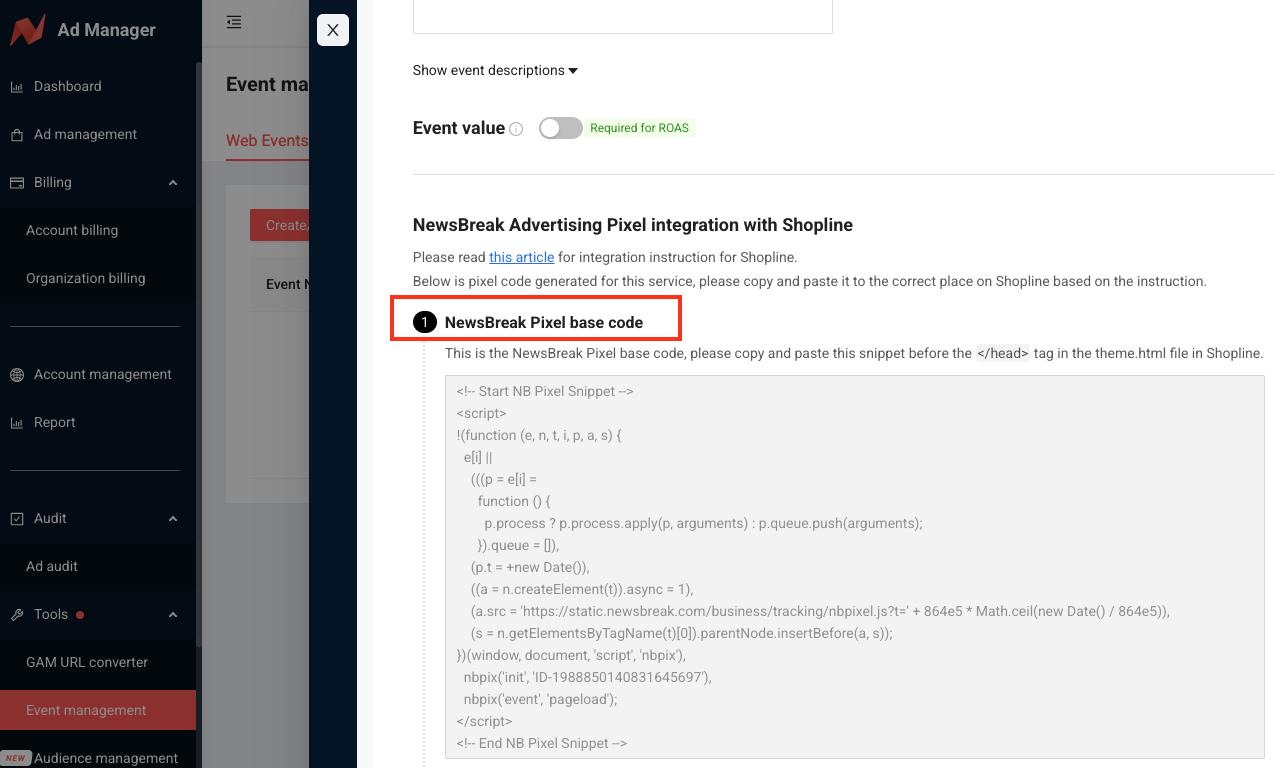
Step 5: Copy NewsBreak Pixel Base Code to Shopline, then go to Next Step
Step 6: Copy the NewsBreak Pixel Conversion Code to Shopline, then go to Next Step
- View Content
- Add to Cart
- Initiate Checkout
- Complete Payment
Step 7: Click Finish to complete pixel installation
Step 8: Test the landing page url in NewsBreak Ad Manager
- Enter your landing page URL and click Go test.
- After the test completes successfully, click Save.
Step 9: Add UTM parameters
We recommend adding UTM parameters to your landing page URLs when creating ads to ensure traffic and conversion data is correctly reported in the Shopline dashboard.
Example: